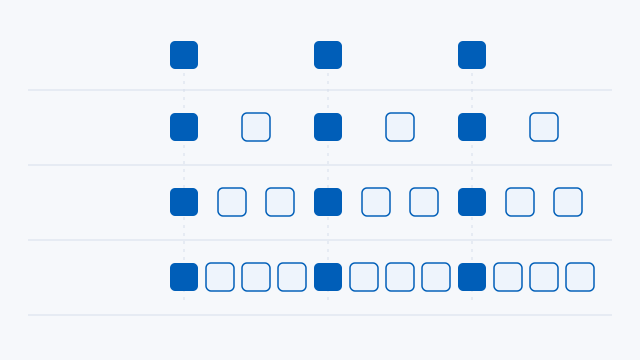
60 FPS
- Source FPS
- 30
- Generated frames per source frame
- 1
- Minimum display Hz
- 60
SmoovPlay adds frames to an existing Windows stream. Your console still runs your copy of the game.
Check your Windows PC ↓AMD Radeon and Intel Arc are experimental options. The documented PS5 path uses Chiaki-ng. App-window and capture-card inputs are experimental.
| Release file | Size |
|---|---|
| SmoovPlay-Setup.exeWindows installer | 140.473 MB |
| SmoovPlay-Setup.exe.sigDetached updater signature | 638 B |
The publisher reports that the Windows installer is unsigned. The detached signature is for the installed updater. Compare the installer with its published SHA-256 before running it.
80de92e4faaef0f84476449fae15604b47053502d09d1fd4ac29193e4aa2e84f7d10197d3d82bf57d09eff6119c9a401652057e04e2af59731aafbc555ec962eEnable Remote Play on your PS5, then follow Connect your PS5 in SmoovPlay to sign in and register the console with Chiaki-ng. Test the stream at home, then choose an output mode your display can show.
The generated frames smooth motion between frames from the console. Game input still goes to the console at the game’s original cadence.
Setup runs a short graphics and display test to pick an output mode. If you change monitors, go to Settings and run Auto-detect again. To compare the stream with frame generation on and off in the same scene, press I in the video window. Press S to cycle through the stats overlay and check whether output stays steady at your chosen rate.
The test measured processing and upload for two generated frames per source frame. Total controller-to-screen delay also includes the console, connection and display.