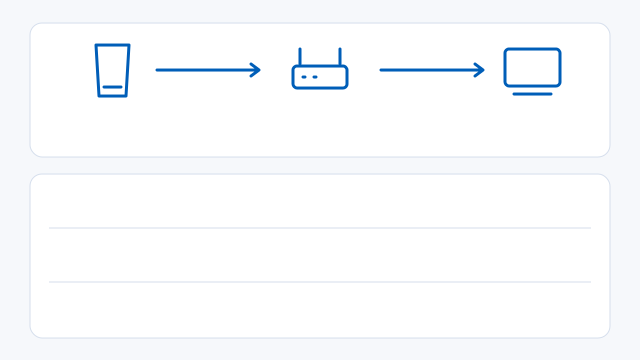
Set up PS5 or PS4

Enable Remote Play, pair on your home network and test your controls before trying to stream away from home.

PS5Console
5 MbpsSony minimum, both ways
15 MbpsSony target, both ways
Check router and bitrate settings ↓
Before your first session0 of 4 ready
↗
↗
↗
↗

Enable Remote Play on your console

PS5

  1. Enable Remote Play.
    Open Settings → System → Remote Play and turn on Enable Remote Play.
  2. Set up network wake.
    Open Settings → System → Power Saving → Features Available in Rest Mode. Turn on Stay Connected to the Internet and Enable Turning On PS5 from Network.
  3. Pair if discovery fails.
    Use Link Device in the Remote Play settings. On your device, enter the number shown on the PS5 while both devices are on the same network.

Sony desktop control icons

ControlPlatform
macOS mic onMic onmacOS
macOS mic offMic offmacOS
macOS microphone not connectedMic not connectedmacOS
Windows mic onMic onWindows
Windows mic offMic offWindows
Windows microphone not connectedMic not connectedWindows
Windows enter full screenEnter full screenWindows
Windows exit full screenExit full screenWindows

Router port lookup

Choose the client and console. Each result is a documented rule for that pair.

UDP 8572
PS Remote Play · PS5

Test locally first. If you need a manual rule, reserve the console’s local IP and keep the rule scoped to that address.

Diagnose NAT and connection failures

Estimate stream data

Calculate decimal GB of video from a sustained bitrate and session length. Audio and network overhead are extra.

6.8 GB
6.8 GB/h
Sony minimum for upload and download
5 Mbps
Sony recommended upload and download
15 Mbps
Sony and Chiaki-ng router port comparison
Compare the documented network paths here. The lookup above shows the rules for your selected client and console.

Set up your device

  1. Download and install Sony’s desktop app, then connect a supported controller.
  2. Open PS Remote Play, sign in with the same account as the console and select PS5 or PS4. If discovery fails, enter the pairing number from your console.
  3. On Windows, HDR requires a supported display, Windows HDR and Microsoft’s HEVC Video Extension. On Mac, use a USB connection for DualSense haptics.
Choose the right download ↗

Keyboard, mouse and controllers

Start with a supported PlayStation controller. Sony’s Windows and Mac clients can pass keyboard keys through to games that support a hardware keyboard. Mouse support depends on the client and game. Chiaki-ng offers configurable input mappings, while PXPlay documents desktop keyboard typing in supported games with gamepad emulation switched off.

Chiaki-ng’s button-position setting maps face buttons by location, which can help with Nintendo-style layouts.

Compatibility ↗

If the session drops away from home

Try the same device on your home network first. Pause competing downloads while testing.

CGNAT can prevent inbound connections even when your local forwarding rule is correct. Check with your ISP before changing more ports.

  • Check NAT in the Sony app. NAT Type 3 or an unavailable result can prevent a connection. If local play works, check the documented UDP 8572 rule.
  • Troubleshooting ↗

Add frame generation on Windows

SmoovPlay takes an existing stream or capture and can generate 60, 90 or up to 120 displayed FPS from a 30 FPS feed. Check that your monitor supports the target refresh rate. Use 64-bit Windows 10 or 11, at least 8 GB RAM, 12 GB free for setup and a supported GeForce RTX 30, 40 or 50 series GPU.

SmoovPlay measured a median 17.6 ms of processing time for two interpolated frames in a live 90 FPS PS5 example, including upload work, using an RTX 4070 Ti SUPER. This measures frame processing. Total control-to-display delay also depends on the console, connection and display.

SmoovPlay ↗

Sources